
AI Business Name Generator with HTML, CSS & JavaScript
40 DAYS 40 PROJECT CHALLENGE
Day #18
Project Overview
The AI Business Name Generator is an AI-powered web project built with HTML, CSS, and JavaScript. It allows users to enter a keyword related to their business, such as technology, food, fashion, or education. The application then sends the keyword to an AI model and generates multiple creative business name ideas.
Moreover, this project demonstrates how a simple frontend interface can connect with an AI API. JavaScript handles the user input, sends the API request, receives the generated names, and displays the result dynamically. Therefore, beginners can use this project to understand API integration, asynchronous JavaScript, DOM manipulation, and AI-powered features.
Key Features
- Business Keyword Input: Users can enter a keyword that describes their business or industry. For example, they can enter terms such as
tech,food, or another business-related keyword to guide the name generation process. - AI-Generated Business Names: It sends the entered keyword to an AI model and requests 10 creative startup business names. As a result, users can quickly generate several naming ideas from a single keyword.
- Keyword-Based Suggestions: The entered keyword becomes part of the AI prompt. Therefore, the generated business names are related to the type of business entered by the user.
- AI API Integration: JavaScript uses the
fetch()method to send a POST request to the OpenRouter API. The request includes the selected AI model, user prompt, and required headers. - Input Validation: Before sending the API request, JavaScript checks whether the keyword field is empty. If the user does not enter a keyword, the application displays a message asking them to enter one.
- Loading Feedback: While the AI request is processing, the result section displays
"Generating AI business names...". This gives users immediate feedback instead of leaving the result area empty. - Dynamic Results: After the API responds, JavaScript extracts the generated business names and displays them inside the result section. Consequently, users can see the suggestions without refreshing the webpage.
- Clean User Interface: The project uses a centered white card, input field, button, and result section. In addition, rounded corners and spacing create a simple interface that keeps the main functionality easy to understand.
- Responsive Container: The application uses a flexible centered layout with a defined container width. Therefore, the interface provides a straightforward structure for different screen sizes.
What You'll Learn
- How to build an AI business name generator with HTML, CSS, and JavaScript.
- How to collect and validate user input using JavaScript.
- How to create API requests using the
fetch()method. - How to use
asyncandawaitfor asynchronous operations. - How to send JSON data with
JSON.stringify(). - How to read and display data from an API response.
- How to update webpage content dynamically using the DOM.
- How to connect a frontend project with an AI model through an API.
HTML Code
HTML creates the basic structure of the AI Business Name Generator. The .container holds the heading, keyword input, Generate AI Names button, and result section. The #keyword input allows users to enter a business-related keyword. Next, the Generate AI Names button calls the generateNames() function when clicked.
Finally, the #result element provides a dedicated area where JavaScript displays validation messages, loading information, and the generated business names. The HTML file also loads script.js to add the application’s interactive functionality.
<!DOCTYPE html>
<html>
<head>
<meta charset="UTF-8">
<title>AI Business Name Generator</title>
<link rel="stylesheet" href="style.css">
</head>

<body>

<div class="container">

<h1>AI Business Name Generator</h1>

<input id="keyword" placeholder="Enter business keyword (e.g. tech, food)">

<button onclick="generateNames()">Generate AI Names</button>

<div id="result"></div>

</div>

<script src="script.js"></script>

</body>
</html>
CSS Code
CSS controls the appearance and layout of the business name generator. First, the universal selector removes the default margin and padding, sets box-sizing: border-box, and applies the Arial font. The body uses a dark blue background and Flexbox to center the application both horizontally and vertically. Meanwhile, the .container creates a white card with padding, rounded corners, a fixed width, and centered text.
Input field uses full width, padding, a border, and rounded corners. Similarly, the button occupies the full width and uses a blue background with white text, button:hover selector also changes the button background when users move the cursor over it. Finally, the #result section provides a separate area for the generated names. It uses a light background, padding, rounded corners, and top spacing to separate the results from the input section.
*{
margin:0;
padding:0;
box-sizing:border-box;
font-family:Arial;
}

body{
background:#042354;
display:flex;
justify-content:center;
align-items:center;
height:100vh;
}

.container{
background:white;
padding:30px;
border-radius:12px;
width:600px;
text-align:center;
}

input{
width:100%;
padding:10px;
margin-bottom:10px;
border-radius:6px;
border:1px solid #ddd;
}

button{
width:100%;
padding:12px;
background:#2563eb;
color:white;
border:none;
border-radius:6px;
cursor:pointer;
}

button:hover{
background:#1d4ed8;
}

#result{
margin-top:20px;
text-align:left;
background:#f1f5f9;
padding:15px;
border-radius:6px;
}
Javascript Code
JavaScript handles the keyword input, API request, and result display. First, the generateNames() function retrieves the keyword and result elements from the HTML. Next, it checks whether the keyword is empty. If it is, the function displays a message and stops the process.
After that, JavaScript displays a loading message and uses fetch() to send a POST request to the OpenRouter API. The request includes a prompt asking the AI model to generate 10 creative startup business names related to the entered keyword. Finally, JavaScript converts the API response into JSON and extracts the generated message from the response. It then places the business names inside the result section, allowing users to view the suggestions immediately.
async function generateNames(){

const keyword = document.getElementById("keyword").value
const result = document.getElementById("result")

if(keyword.trim() === ""){
result.innerText = "Please enter a keyword."
return
}

result.innerText = "Generating AI business names..."

const response = await fetch("https://openrouter.ai/api/v1/chat/completions",{

method:"POST",

headers:{
"Content-Type":"application/json",
"Authorization":"Bearer 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"
},

body:JSON.stringify({

model:"openai/gpt-4o-mini",

messages:[
{
role:"user",
content:`Generate 10 creative startup business names for a company related to "${keyword}". Only return the names in a list.`
}
]

})

})

const data = await response.json()

result.innerText = data.choices[0].message.content

}Related Projects
Day 15 : AI Interview Question Generator
Generates interview questions based on selected role or topic.
Concepts: Form handling, dynamic content generation, UI feedback.
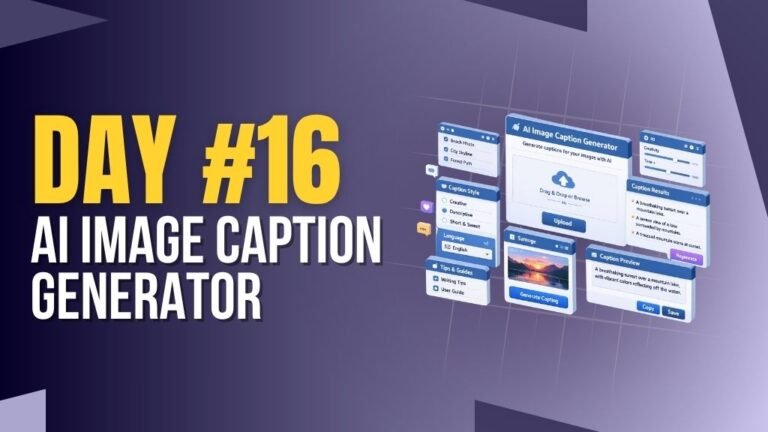
Day 16 : AI Image Caption Generator
Generates captions for images based on user input or preview.
Concepts: File handling, dynamic text output, UI updates.

Day 20 : AI Chatbot Widget for Website
Interactive chatbot UI for handling user queries in real-time.
Concepts: Event handling, dynamic responses, UI interaction.